
Claude: How It Works and When to Use Chat, Cowork, and Code
AI-Assisted Development
Using AI coding tools day to day: Amazon Q Developer, what I learned after 6 months, and a look at Kiro.
5 articles
I’ve been using Claude almost daily for a while now, first as an extension inside Kiro and VS Code, and later trying the full desktop app. I’ve noticed many people still see it as “an AI chat for coding”. And yes, that’s where it started, but it has become something considerably broader.
Before getting into the technical detail, I’ll answer two questions first: what Claude actually is, and the different ways you can use it. With that clear, the rest of the article makes much more sense.
1. What Claude is
Claude is the name Anthropic uses both for its language models and for the products it builds around them: they’re not two separate things, but two layers of the same thing.
Model names and power tiers change with every generation, so it’s not worth memorizing whichever is newest today. For what matters in this article, keep just this: whatever the current model is, you talk to it through different products (the claude.ai web chat, the editor plugins, the desktop app, the API…). All of them talk, under the hood, to the same model family; what changes is the interface and what each one is allowed to touch (just text, your files, your repository…).
2. The ways you can use Claude
This is where many of us get a bit lost, because there isn’t a single entry point. These are the main ones:
- Via web or mobile app, at claude.ai: free to start (with daily usage limits), no card required. This is what most people mean by “Claude Chat”. Conceptually equivalent to using ChatGPT from the browser.
- As an extension or plugin inside your editor: there’s an official Claude Code extension for VS Code and a plugin for JetBrains. And since Kiro is built on VS Code, the same extension can be installed there too, which is exactly what I’ve been using.
- From the terminal, installing the Claude Code CLI (
npm install -g @anthropic-ai/claude-code). - From the Claude desktop app: a standalone application (macOS, Windows and Linux) with two tabs, Home and Code. Chat and Cowork, the other two modes this article is about, share the Home tab and switch via a selector inside the message box itself.
- Via API, for anyone who wants to integrate Claude into their own tools or automations, with a pay-per-token model.
- Via the Claude apps gateway, if you’re managing Claude Code and Claude Desktop for a whole team: it’s a centralized governance layer (SSO identity, permissions, spend caps and routing to Amazon Bedrock or Claude Platform on AWS), not a different way of working, but a way of governing the ones above at scale. AWS covers it in detail in this post.
That said, the rest of the article focuses on the three modes (Chat, Cowork and Code), which is the clearest way to understand what Claude can do for you. Whether you use them from the desktop app or access individual pieces of them from your editor or the web.
3. Chat mode: the conversation we all know
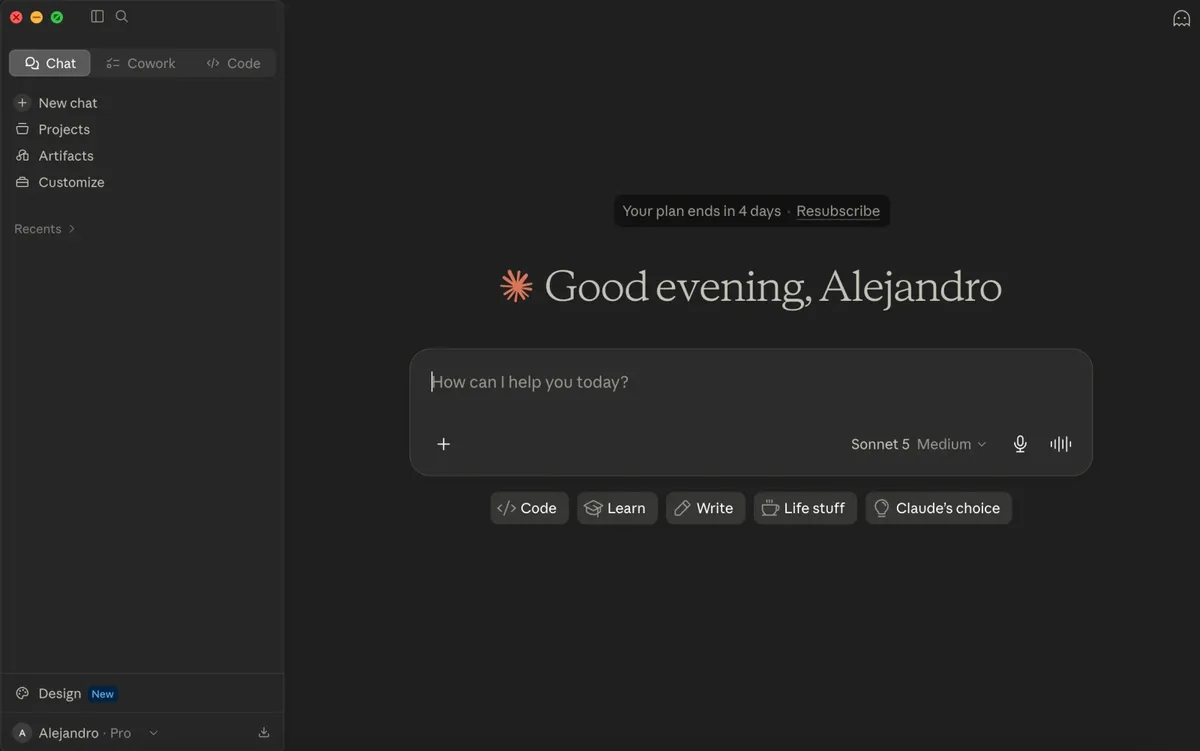 The desktop app: the Home and Code tabs top-left; the Chat/Cowork selector lives inside the message box
Chat mode is, plain and simple, what we know as “a ChatGPT but from Anthropic”: you write, Claude answers, and the conversation stays there. It doesn’t touch your files or execute anything on its own; if you want to do something with the answer, you copy it and apply it yourself.
It’s the right mode when what you need is to think about something, not to have something executed:
- “Explain the differences between these two architectures before I decide which one to use.”
- “Review this code snippet and tell me if you see any problems.”
- “Help me draft the reply to this client.”
Why Claude Chat instead of ChatGPT
Day to day they’re very similar: both are a chat with mobile apps, a free plan and a paid one from around $20/month, and increasingly equivalent features (Claude’s “Artifacts” and ChatGPT’s “Canvas” are the same idea; both generate images inside the conversation).
Being honest: there’s no objective answer to “which one is better”. The differences you’ll notice have more to do with writing and reasoning style, and with which ecosystem you already use, than with exclusive features. Try both on your real tasks and draw your own conclusions. Any list of “advantages” will be outdated in a few months, mine included.
4. Cowork mode: Claude working on your desktop
Cowork takes a leap beyond Chat: instead of answering question by question, you give Claude a folder and a goal, and Claude plans and executes whatever steps are needed until it hands you a finished result.
The difference with Chat is access: in Cowork, Claude can read, edit and create files in the folders you point it to, open applications and navigate the system. It doesn’t describe the steps, it executes them. It shows you the plan and the progress so you can step in if something isn’t going as expected.
Typical examples where Cowork shines:
- Sorting out a downloads folder full of invoices and screenshots, and turning them into an expenses spreadsheet.
- Taking several loose documents and generating a report or a presentation from them.
- Reading a pile of contracts or notes and returning a structured summary.
Notice that none of these examples mention “coding”: Cowork is designed for people who work with documents, spreadsheets and everyday applications, without needing to know what a repository is.
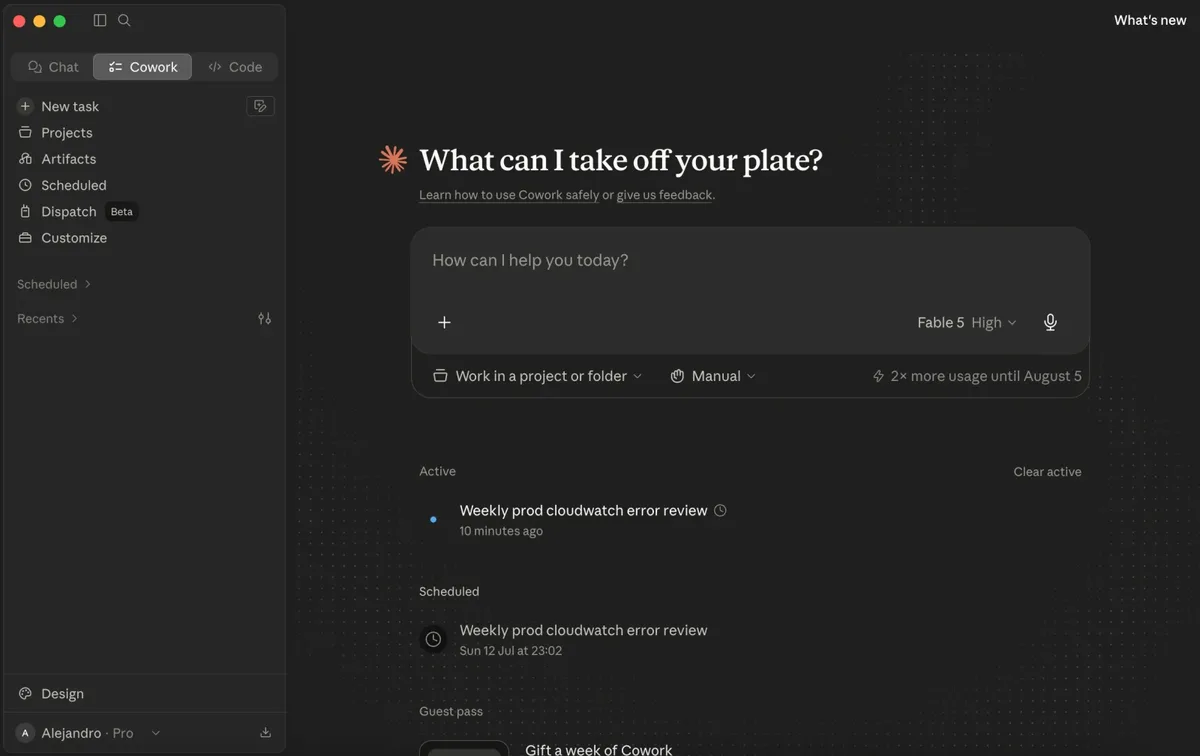 Cowork selected in Home’s message box, with scheduled tasks listed below
Cowork also lets you turn that one-off task into something recurring (a scheduled task, inside Home), or hand it to a Routine in the Code tab so it runs on its own in the cloud, no matter what happens to your laptop. That part is where I get the most mileage out of it day to day, so it gets its own article: Automate Tasks with Claude: Cowork Scheduled Tasks and Routines.
5. Code mode: for when the work is programming
Code mode is the most technical face: it works directly on a repository, understands the whole codebase, can edit several files at once, run commands, run tests and open pull requests. It is the same engine you use when you install the Claude Code extension in VS Code, JetBrains or Kiro, just integrated in the editor instead of the desktop app.
Tasks that fit here:
- “Investigate why this test fails and fix it.”
- “Add this endpoint following the same pattern as the existing ones.”
- “Review this branch’s changes before merging.”
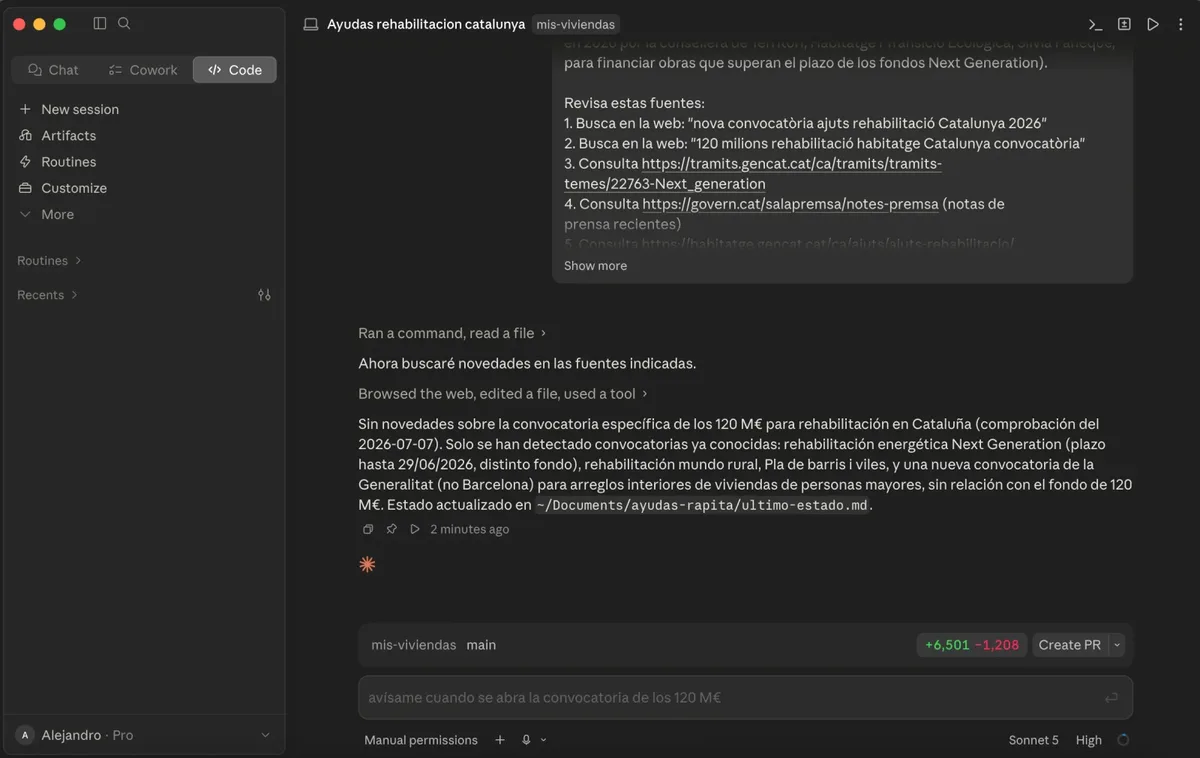 Code mode working on one of my repositories: branch context, accumulated diff and the create-pull-request button
CLI vs. editor extension
Code mode has three entry points, and all of them use the same engine underneath (same account, same usage limits, same ability to read and edit files, run commands and run tests): the desktop app, the CLI and your editor’s extension.
- Running
claudein a terminal (yours, or your editor’s integrated one) gives you a text interface, command-line style.
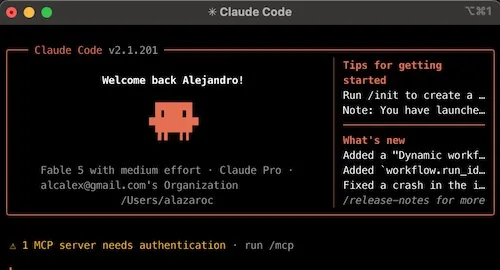 The CLI in its own terminal window: same engine, no graphical panel
- The VS Code extension or the JetBrains plugin add a native graphical panel on top: visual diff review, file mentions, plan review before applying. The extension ships its own internal copy of the CLI; if you also want to use the
claudecommand in the editor’s integrated terminal, you need to install the CLI separately.
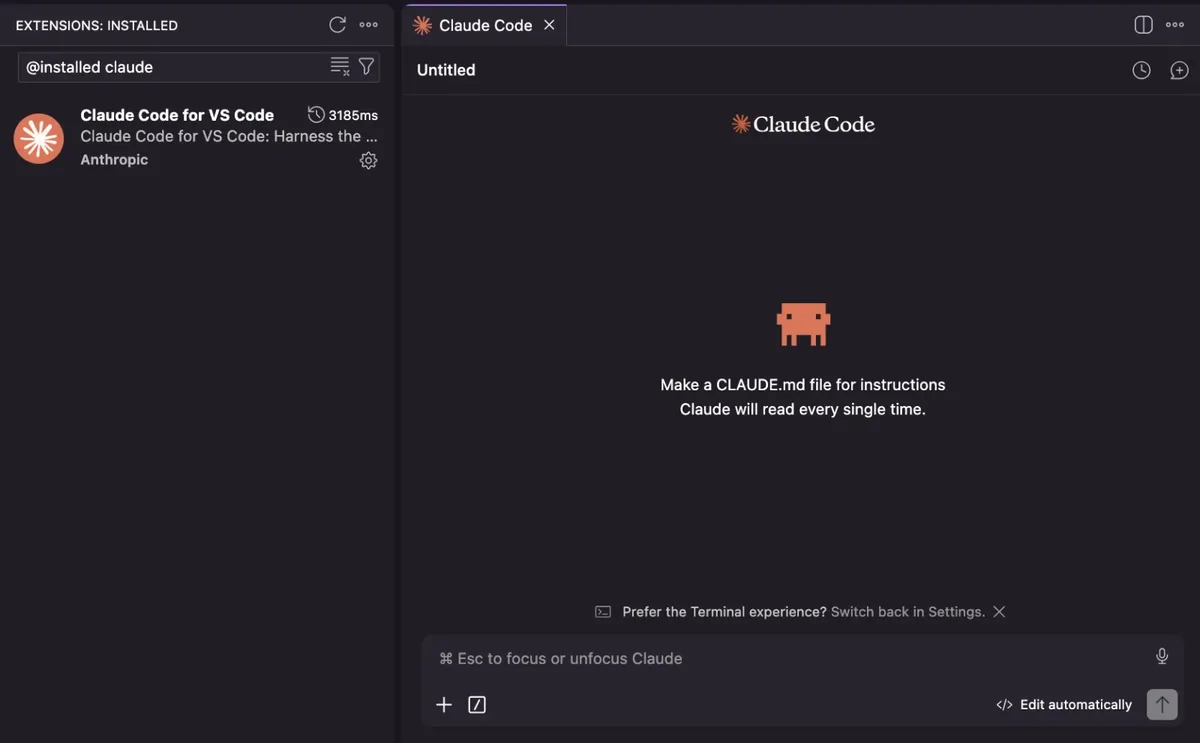 The official Claude Code extension freshly installed in VS Code. Same engine as the CLI, with a graphical panel
In practice: if you live in the terminal, use the CLI; if you prefer seeing changes as a regular diff without leaving the editor, use the extension.
6. Cowork vs. Code: how to choose
Under the hood they share the same agent architecture: both plan, execute multiple steps and work with tools autonomously. The difference isn’t capability, it’s what context each one is designed for:
| Cowork | Code | |
|---|---|---|
| Unit of work | A folder with files and applications | A code repository |
| Concepts it handles | Documents, spreadsheets, apps | Branches, commits, pull requests, tests |
| Typical user | Non-technical profiles: analysis, operations, legal, marketing… | Developers |
| Execution environment | Your own machine | Local, remote or over SSH, your choice |
In practice: if your task revolves around a repository, use Code. If it revolves around files and applications with no code involved, use Cowork. And if the work mixes both, nothing stops you from using both: for example, generating a report in Cowork from exported data, and using Code to automate that same process inside a repository.
7. Usage limits and subscriptions
The three modes share the same usage quota from your subscription (a rolling 5-hour window plus a weekly limit). It’s not that Chat has its own quota and Cowork a different one: it’s a single budget for everything. The difference is that Cowork and Code are agents that plan, read files, run tools and sometimes retry steps, so the same question burns through that budget much faster in Cowork or Code than in Chat, even if Claude ends up not needing to touch any file to answer you. That’s why the practical approach is to save the more autonomous modes for when you actually need them, and use Chat for everything that’s just thinking or writing: your quota goes further and, as a bonus, you’re not giving access to your files or repository unnecessarily.
The best part is you don’t have to guess any of this: Settings > Usage shows the real-time breakdown. This is my account on a normal working day:
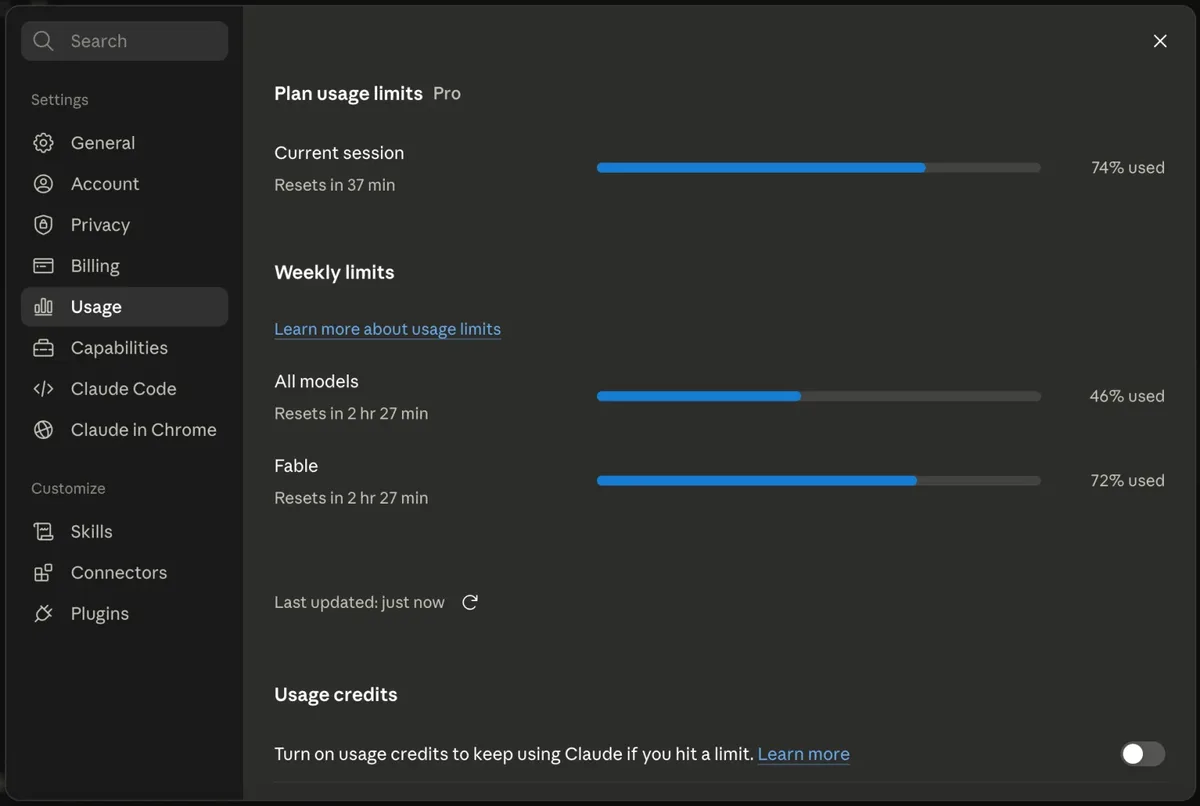 Current session consumption (the 5-hour rolling window) and weekly limits, in Settings > Usage
Three details on that screen worth looking at:
- Two different clocks: the “Current session” bar (the rolling 5-hour window) and the “Weekly limits” bars reset independently. You can exhaust a session and still have plenty of week left, or the other way around.
- Top-tier models get their own bar: in the screenshot, “All models” is at 46% but “Fable” (the Mythos tier) is already at 72%. The most powerful models burn through their own limit much faster. One more reason not to use the most expensive model for trivial questions.
- Usage credits: the toggle at the bottom lets you keep using Claude on a pay-as-you-go basis when you hit a limit, instead of waiting for the reset. Useful as an occasional relief valve; if you find yourself enabling it often, upgrading your plan probably pays off.
As for the plans themselves, the numbers change fairly often, so treat these as an orientative snapshot and always confirm at claude.com/pricing:
- Free: Chat only on claude.ai, with a fairly low usage limit and no access to Cowork or Claude Code.
- Pro (around $20/month): unlocks Cowork and Claude Code (CLI, editor extensions and desktop app), with a usage budget shared across the three modes.
- Max (two tiers, 5x and 20x): same features as Pro, but with 5 or 20 times more usage budget for intensive sessions.
- Team and Enterprise: designed for organizations, with centralized billing, seat management and admin controls (this is where the Claude apps gateway from earlier comes in, if you need that control at scale).
- API: pay per token consumed, meant for integrating Claude into your own tools or large-scale automations. It’s a completely separate billing system from the subscriptions.
To put my own case on the table: I’ve been paying for the Pro plan for five months (€18/month in Europe) at the time of publishing this, and it’s the plan I work with daily. The usage limits screenshot above is from that account. For intense but not industrial individual use (daily Code sessions, constant Chat), Pro holds up well; the weekly limit only starts to bite on days with very long sessions on the big model.
8. An AWS example
Since this is an AWS blog, a quick example of each mode applied to this territory:
- Chat: you paste an AWS CloudFormation error message or an AWS Identity and Access Management (IAM) policy that doesn’t add up, and ask it to explain what’s going on and why. It doesn’t need to touch your account, just reason about the text you give it.
- Cowork: you have a folder with AWS Cost and Usage Report files downloaded month by month, and you ask it to review them and build a per-service spend summary in a spreadsheet. It works on local files, no AWS account connection needed.
- Code: you ask it to review a Terraform or AWS Cloud Development Kit (AWS CDK) template before applying it, leaning on the AWS MCP servers for IaC.
The full example, a daily Amazon CloudWatch error report generated automatically by a Routine, gets a complete walkthrough in Automate Tasks with Claude: Cowork Scheduled Tasks and Routines.
9. Claude Code vs. ChatGPT (Codex) vs. Kiro
To close, the question you’re probably asking yourself: if you already know Kiro (which I covered in this article) and you use or have tried ChatGPT, why choose one or the other? There’s no absolute answer, without trying to crown “the best one”:
| Kiro | Claude Code | ChatGPT (Codex) | |
|---|---|---|---|
| Built by | AWS | Anthropic | OpenAI |
| Designed for | Structured development: specs, steering, hooks | The whole spectrum: chat, non-technical tasks (Cowork) and code (Code) | Ground very similar to Claude Code: CLI, editor extension, cloud tasks |
| Strength | Very polished integration with AWS (CDK, Terraform, native services) and traceability of requirements | Covering a wide spectrum with a single product, with Routines to automate without depending on your machine | Convenient if you already live in the ChatGPT ecosystem daily |
| Automation without your machine | Kiro Web Automations, native: cloud sandbox with cron scheduling, ships a PR | Routines, native, no infrastructure to set up | Scheduled Tasks and Codex Automations, also native |
My recommendation: if you have access to all three, try them on a real task from your daily work and compare the result, instead of trusting comparisons (including this one). These tools move fast, and what’s an advantage today may not be one in a few months.
12. Conclusion
At the start of this article I mentioned that many people still see Claude as “an AI chat for coding”. By now I hope it’s clear why that idea falls short: the same Claude that helps you draft an email is the one that reviews your pull request or sorts out a folder full of invoices. What changes is the mode, not the tool.
If you only take one thing from this: the next time you open Claude, before writing the prompt, take a second to think about which mode you’re opening it in. That choice (more than the prompt itself) is what decides whether you feel Claude is genuinely helping you or you’re just having yet another conversation.
And if you want to see how far Cowork goes once you stop using it just for one-off tasks, keep going with Automate Tasks with Claude: Cowork Scheduled Tasks and Routines, with a real AWS example.