
Automate Tasks with Claude: Cowork Scheduled Tasks and Routines
AI-Assisted Development
Using AI coding tools day to day: Amazon Q Developer, what I learned after 6 months, and a look at Kiro.
5 articles
In the previous article I covered Claude’s three modes, Chat, Cowork and Code, and when to use each. If you haven’t read that yet, start there. Here I’m sticking to Cowork, specifically the part I get the most mileage out of day to day: turning a one-off task into something that runs on its own, without me having to remember to trigger it.
By default, Cowork is reactive: you give it a folder and a goal, and it runs until it hands you a result. But there are two ways to stop depending on you triggering it every time, and choosing between them is exactly what I want to cover here.
1. Scheduled tasks: your computer needs to be on
Inside the Home tab, under Scheduled, you can turn a one-off Cowork task into a recurring one, for example: “every Monday morning, review this shared folder and let me know if there’s anything new that needs my attention”. Very useful, but with a limitation you should understand before depending on it: the task runs on your own machine.
Your computer has to be on and awake at the moment the task is due. If the machine is off or asleep, that run is simply skipped, with no warning and no later retry.
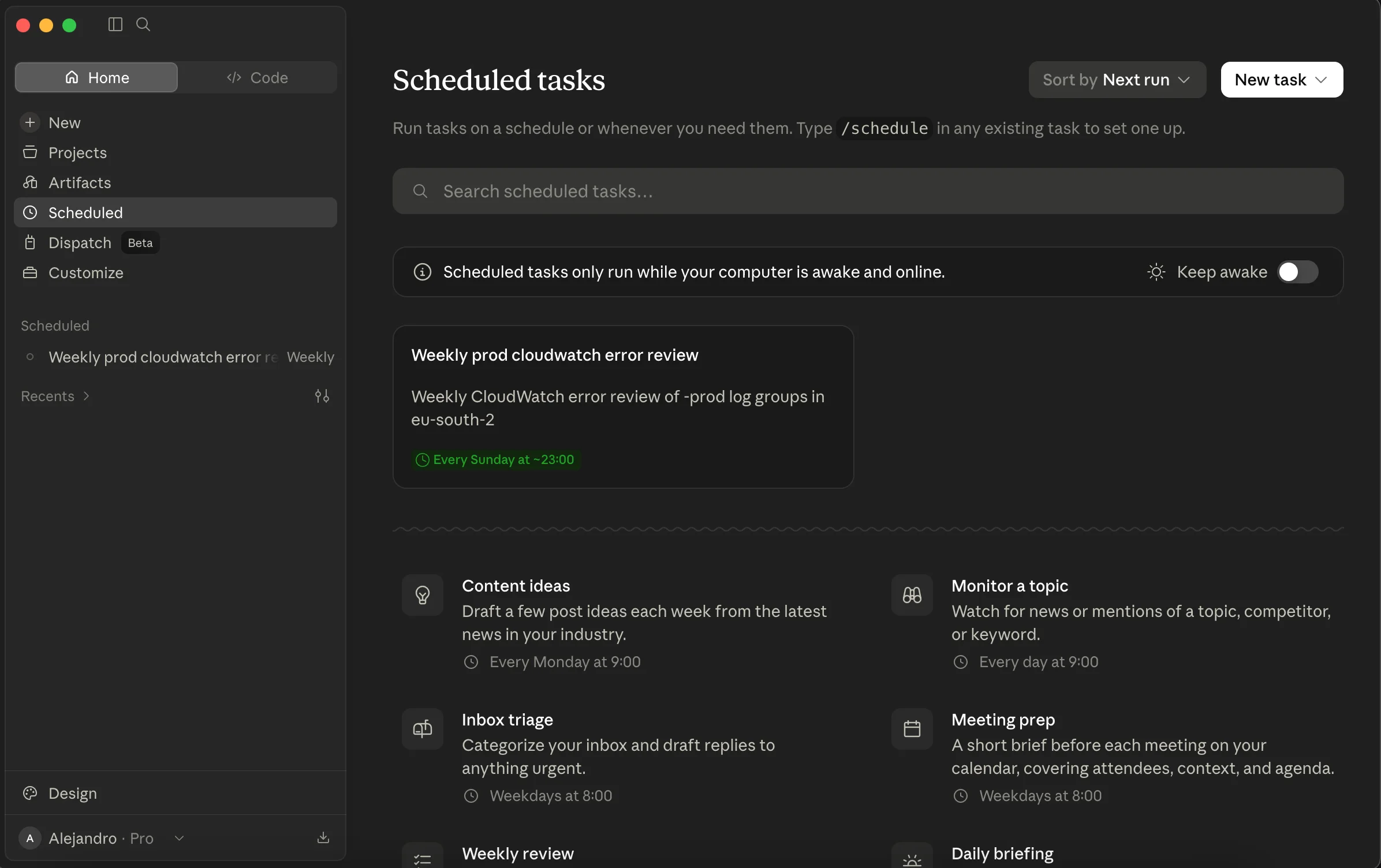 The Scheduled section inside Home: my real weekly Amazon CloudWatch review, next to suggested templates
So Cowork’s scheduled tasks fit well for things like “while I work, have Claude keep an eye on this in the background”, but they’re not the right tool if you need something to run no matter what, at a specific time, laptop open or not.
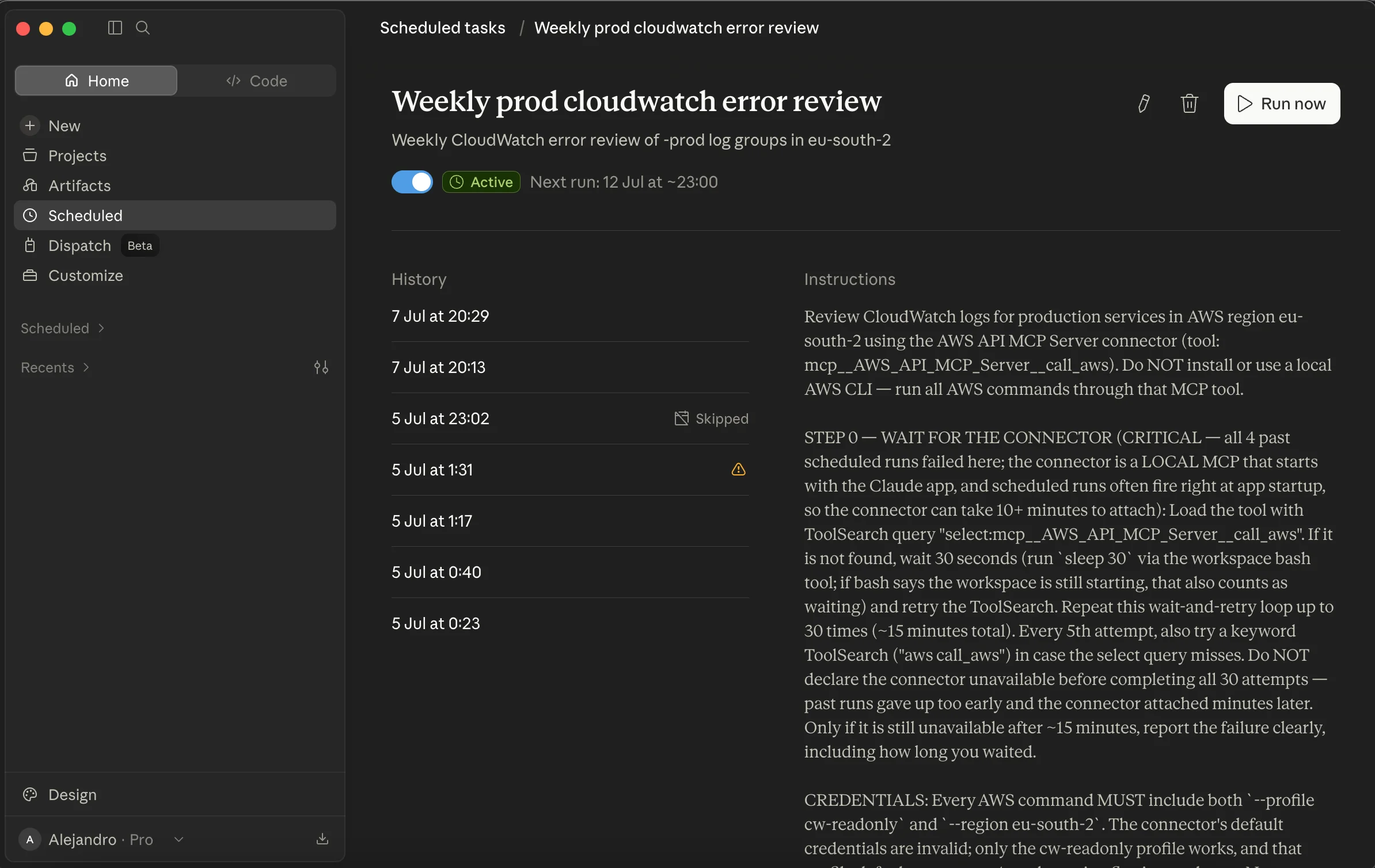 One of my real scheduled tasks: a weekly CloudWatch error review. Note the history: runs marked “Skipped” are days when the laptop was off
2. Routines: now in the Code tab, with a Local or Cloud option
For that second case there are Routines. They used to live elsewhere; Anthropic has now moved them into the Code tab, and each Routine is set up as Local or Cloud when you create it:
- Local: behaves just like a scheduled task, runs on your machine and needs your laptop on.
- Cloud: runs on Anthropic’s infrastructure. It fires even if your laptop is closed or off, and it can also be triggered by an API call or a GitHub event, not just a schedule.
Of the two, Cloud is the one that actually changes the rules, so it’s the one I care about for the rest of this article. The trade-off: a Cloud Routine runs against a clean clone of your repository, so your uncommitted changes, your local .env, or any desktop scratch files aren’t available. It works with what you give it explicitly (the repository, some connectors) and nothing else.
A Routine runs fully autonomously, with nobody confirming each step. Reserve it for well-defined, low-risk tasks with a clear, reversible outcome: a report, a pull request draft, a notification. Avoid letting it run destructive or irreversible actions without anyone reviewing them first.
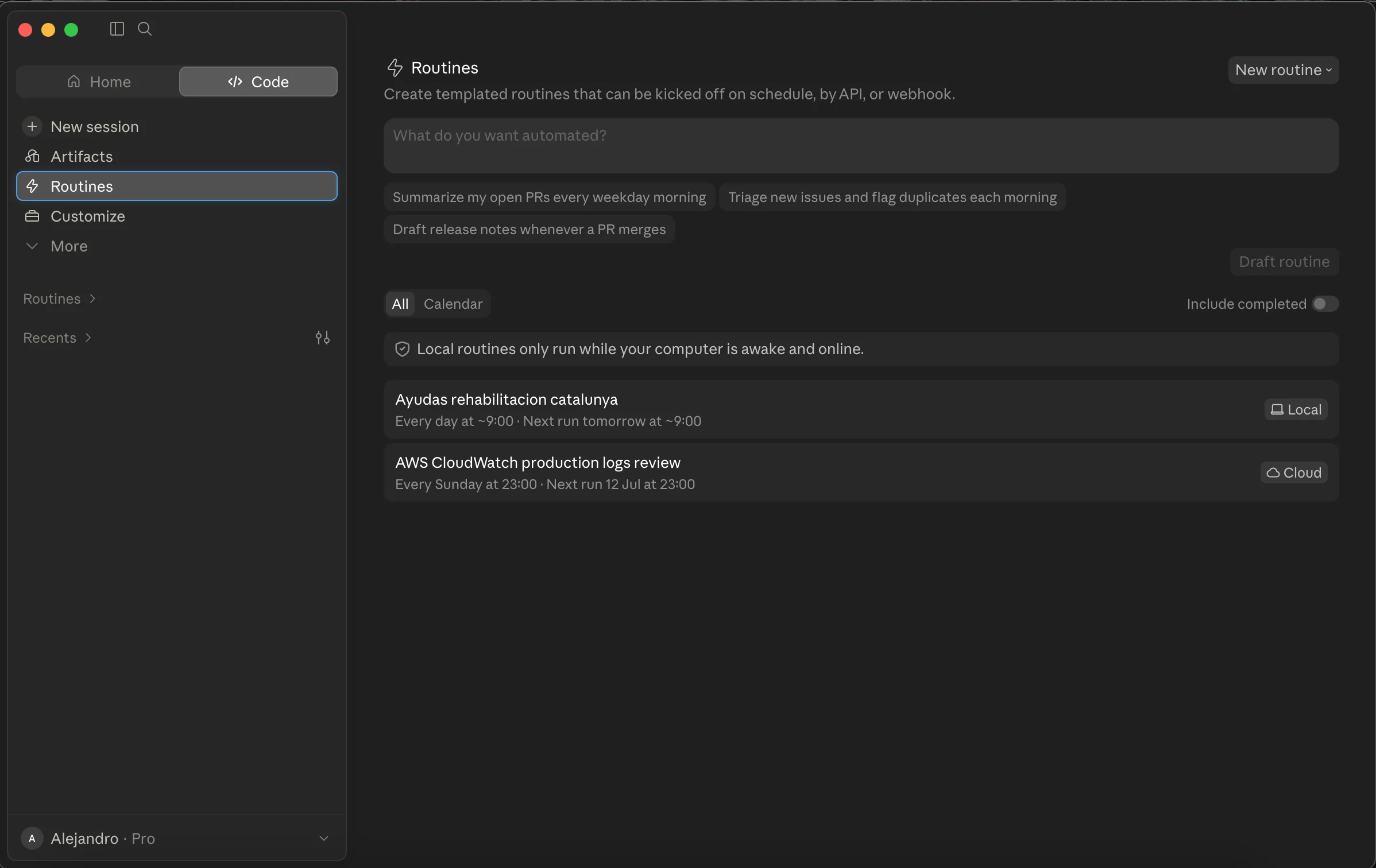 Routines, now living in the Code tab: “Ayudas rehabilitacion catalunya” runs Local, “AWS CloudWatch production logs review” runs Cloud
Watch your usage budget: Routines draw from the same shared usage budget as Chat, Cowork and Code (I cover that in more detail in the previous article). If you plan to automate a lot with them, keep an eye on Settings > Usage every so often: a poorly tuned Routine that retries steps or queries too much can quietly eat through your quota before you notice you’re out mid-week.
3. Which one to pick
Before the table, the nuance that’s easy to miss: a scheduled task and a Local Routine behave exactly the same at runtime. Both need your laptop awake and the app open; neither survives you closing the lid. The difference isn’t reliability, it’s who each one is built for and what it can see:
- Scheduled task (Home): Cowork’s interface, built for files and apps in general, no assumption you know what a repository is.
- Local Routine (Code): Claude Code’s interface, built for developers, with access to your repository exactly as it sits on disk, uncommitted changes, local
.env, and scratch files included. That’s exactly what a Cloud Routine loses.
| Scheduled task (Home) | Local Routine (Code) | Cloud Routine (Code) | |
|---|---|---|---|
| Where it runs | Your own computer | Your own computer | Anthropic’s infrastructure |
| Needs your laptop on | Yes | Yes | No |
| Access to your repo | — | Exactly as it sits on disk (uncommitted included) | Only a clean clone |
| Triggers | Schedule only | Schedule | Schedule, API or GitHub events |
In practice: if you need something that only exists on your machine (uncommitted changes, a secret you don’t want to expose as a connector), use Local and accept the laptop dependency. As soon as you can do without that, move it to Cloud, since it’s the only one of the three that survives you turning your laptop off.
There’s a fourth path if you already live in GitHub: the official Claude Code GitHub Action. It runs on your own CI minutes, triggers on GitHub events (PR opened, issue, comment) and doesn’t draw from the shared Cowork/Routines budget, since it uses your own API key. It’s the better fit when the automation already lives inside your pull request workflow, rather than in a folder or on a schedule.
4. A real example: a daily error report from your CloudWatch logs
Since this is an AWS blog, let’s bring it down to earth with a real case: I want a daily report with the relevant errors from my CloudWatch logs from the previous day.
This is infrastructure work, so it fits Code mode (or its editor extension), leaning on an MCP server that gives Claude read access to CloudWatch. Anthropic and AWS maintain several official MCP servers for this, for example cloudwatch-mcp-server, which exposes tools to list log groups and query them.
The important points when setting it up:
- Use a technical user or role with minimal permissions, read-only over Amazon CloudWatch Logs (no administrator credentials). Configure it as an AWS profile (
AWS_PROFILE) and pass it to the MCP server via environment variables. - Give it general instructions, not an exact list of log groups. It’s tempting to write a hyper-specific prompt (“query log group X, filter by Y”), but that’s fragile: as soon as you add a new service, you’ll have to remember to update the prompt. Something like this works better: “Review the production log groups from the last 24 hours, identify the most relevant errors grouping them by cause, and generate a brief summary with the log group, the number of occurrences and one example of each error type.” Claude uses the MCP tools to discover which groups exist and decides how to query them.
- If you genuinely want to narrow the scope (for example, keeping it away from test environment logs), state that explicitly in the prompt or enforce it with the technical user’s AWS Identity and Access Management (IAM) permissions.
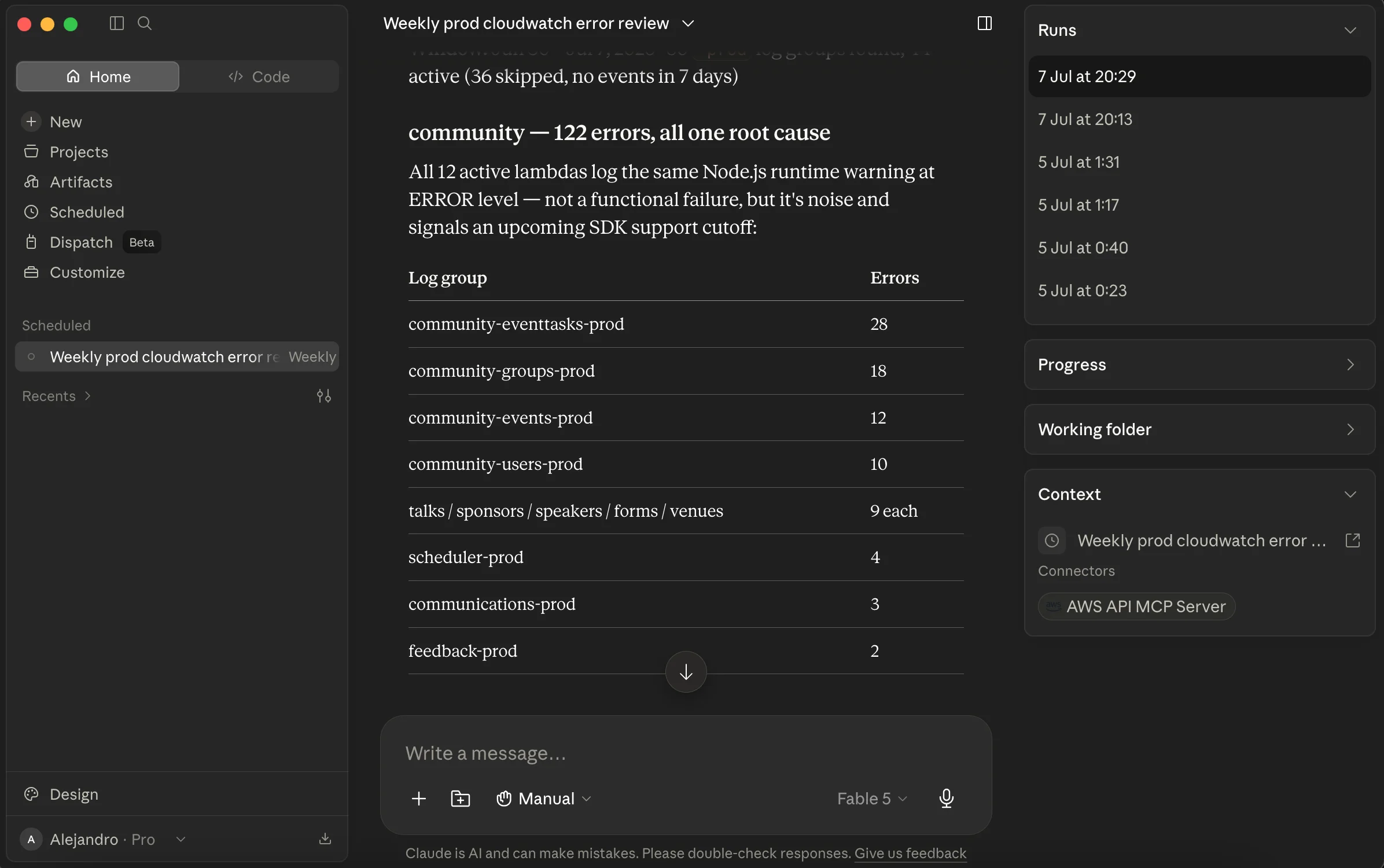 My real implementation of this example: the report the Routine generates, with errors grouped by root cause. Here, a runtime warning repeated across 12 AWS Lambda functions, not a functional failure
And here comes the which option to pick question: since you want the report generated every day no matter what happens with your laptop, the answer is a Cloud Routine, with a scheduled trigger (say, every morning at 7:00) that publishes the result to Slack or email.
If instead what you want is to trigger it yourself, whenever you decide, without depending on a schedule, the best option is that same Cloud Routine with an API trigger: you get an endpoint for it, and whenever you want the report, you make an HTTP call to that endpoint (from a script, a button, or even by hand). Since it runs on Anthropic’s infrastructure, it doesn’t depend on your machine being on, and you don’t have to wait for a scheduled time.
Conclusion
The difference between “using Claude” and “having Claude work for you while you’re not around” comes down to exactly this: scheduled tasks and Routines. Start with a scheduled task for something you already do while working, and once you have something that genuinely needs to run no matter what, laptop off included, move it to a Cloud Routine. The CloudWatch report example above is the one that’s given me the most real value, try it on your own logs and you’ll see how quickly the setup effort pays for itself.